linux poison RSS
linux poison Email
1

Download videos from YouTube.com - youtube-dl

youtube-dl is a small command-line program to download videos from YouTube.com. It requires the Python interpreter, version 2.4 or later, and it's not platform specific. It should work in your Unix box, in Windows or in Mac OS X. The latest version is 2008.10.16

In Linux, download it, give it execution permission and copy it to one of the PATH directories (typically, /usr/local/bin).

After that, you should be able to call it from the command line as youtube-dl or youtube-dl.py. Usage instructions are easy. Use youtube-dl followed by a video URL or identifier. Example:

# youtube-dl "http://www.youtube.com/watch?v=foobar"

The video will be saved to the file foobar.flv in that example. As YouTube.com videos are in Flash Video format, their extension should be flv. In Linux and other unices, video players using a recent version of ffmpeg can play them. That includes MPlayer, VLC, etc.

Some videos require an account to be downloaded, mostly because they're flagged as mature content. You can pass the program a username and password for a YouTube.com account with the -u and -p options, like

# youtube-dl -u myusername -p mypassword "http://www.youtube.com/watch?v=foobar"

Another useful options:
* For usage instructions, use youtube-dl -h or youtube-dl --help.
* youtube-dl can attempt to download the best quality version of a video by using the -b or --best-quality option.
* youtube-dl can attempt to download the mobile quality version of a video by using the -m or --mobile-version option.

Download: here
Read more
1

Top Graphical Text Editors

A text editor is software used for editing plain text files. It has many different uses such as modifying system configuration files, writing programming language source code, etc ...

Gedit (http://www.gnome.org/projects/gedit/)

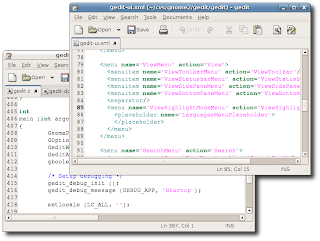
gedit is a small and lightweight text editor for the GNOME environment.

Complete GNOME integration is provided, with support for Drag and Drop (DnD) from Nautilus (the GNOME file manager), the use of the GNOME help system, the GNOME Virtual File System and the GNOME print framework.

gedit uses a Multiple Document Interface (MDI), which lets you edit more than one document at the same time.

gedit supports most standard editing features, plus several not found in your average text editor (plugins being the most notable of these).

Features include:
    * Complete support for internationalized text (UTF-8)
    * Configurable syntax highlighting for various languages (C, C++, Java, HTML, XML, Python, Perl and many others)
    * GNOME VFS support for remote files
    * Complete integration with the GNOME Environment
    * Search and Replace
    * Clipboard support
    * Text wrapping
    * Undo/Redo
    * File Revert
    * Editing files from remote locations
    * A complete preferences interface
    * Configurable Plugins system, with optional python support
    * Bracket matching
    * Backup files
    * Printing and Print Previewing Support
    * Complete online user manual

Kedit (http://kate-editor.org/)


Kate is a multi document editor which is part of the kdebase package of KDE, the K Desktop Environment.

With a multi-view editor like Kate you get a lot of advantages. You can view several instances of the same document and all instances are synced. Or you can view more files at the same time for easy reference or simultaneous editing. The terminal emulation and sidebar are docked windows that can be plugged out of the main window, or replaced therein according to your preference.
Features include:
    * Powerful syntax highlighting and bracket matching
    * MDI, window splitting, window tabbing
    * Spell checking
    * CR, CRLF, LF newline support
    * Encoding support (utf-8, utf-16, ascii etc.)
    * Encoding conversion
    * Search and replace text using regular expressions
    * Drag and drop text editing
    * Code and text folding
    * Infinite undo/redo support
    * Block selection mode
    * Auto indentation
    * Auto completion support
    * Integrated shell
    * Wide protocol support (http, ftp, ssh, webdav etc.)
    * Plugin architecture for the application and editor component
    * Customizable shortcuts
    * Integrated command line
    * Full DCOP scripting
    * Scriptable using JavaScript (KDE 3.5)

Scribes (http://scribes.sourceforge.net/)


Scribes is a text editor for GNOME that focuses on streamlining your workflow.

It does so by ensuring common and repetitive operations are intelligently automated, and also by eliminating factors that prevent the user from focusing on his or her tasks.

Scribes does not try to be a complicated integrated development environment (IDE), or a pseudo IDE. Instead, Scribes focuses exclusively on powerful text processing and manipulation.

Scribes is a spatial and document-centric application. Consequently, it is not designed to use tabbed windows.

Features include:
    * Extensible via Python plugins
    * Remote editing (ftp, sftp, ssh, samba, webdav, webdavs)
    * Snippets!
    * Automatic word completion
    * Automatic correction and replacement
    * Automatic pair character completion and smart insertion
    * Automatic indentation
    * Powerful text processing and manipulation functions
    * Bookmarks and smart navigation
    * Document Switcher
    * Syntax colors for over 30 languages

Cream (http://cream.sourceforge.net/)


Cream is billed as a modern configuration of the Vim text editor. Cream is a set of scripts and add-ons that sit on top of gVim.

Vim is a powerful and full-featured console based text editor. However, Vim is regarded as taking some time to master. Through common menus, keyboard shortcuts, and extensive editing functions, Cream makes Vim approachable for new users and adds powerful features for experienced users.

Cream shapes Vim into an interface you probably already know (sometimes called Common User Access). Whether you are writing emails or developing large software applications, Cream aims to save you time and get you up and running quickly.

The goal of the project is to provide an approachable text editing application with keyboard shortcut and menu access to Vim's full arsenal of functionality

Features include:
    * Edits and converts Microsoft, Unix and Apple format text documents
    * Supports editing of very large files, size is limited by diskspace
    * Encoding support for 38 varieties of 8-bit, 2-byte, and Unicode
    * A single editing mode. (Cream does not use Vim's modal editing unless turned on from the Preferences menu)
    * Tabbed document interface
    * Have multiple documents open at a time
    * User-selected font, window size/position and most other settings are retained and restored automatically
    * Standard and intuitive menus. All functionality is available through pull down menus which indicate available keyboard shortcuts
    * Syntax highlighting makes reading code easier for more than 350 programming languages
    * Unlimited Undo/Redo
    * Automatic text indention
    * Block indention or unindention (with selection, Tab and Shift+Tab)
    * Bookmarking with visible margin marks
    * Spell checking with alternative spelling suggestions and auto-correction. Many languages are supported
    * File explorer window
    * Programmer Features such as line golding, Template completion based on file types, Ctags navigation, and Expert mode
    * Additional functionality through add-ons, modules that can provide a vast library of functionality including converting text to HTML, Hex to ASCII, Email Prettyfier, Email Munge, Encrypt, and a Slide Generator
Read more
2

One stop for up-to-date comparisons - WikiVS

WikiVS allows you to see how things compare directly with each other, instead of leaving you to arbitrary ratings, stars, and smiley faces.

You can see exactly what kind of benefits you can receive by using one product over the other before you invest your money into it. You can determine how much closer a project is to your interests than another before you invest your time. You can see what features a program has and lacks in comparison to another before you invest your effort into it.

Dare to Compare!
You have expertise! You know which products are more suitable than others for a specific purpose. You have experience in projects and know what details are useful in judging them. You use programs that help you to achieve your goals better than other programs.


Read more
0

/proc explained

This  filesystem (/proc) contains a huge set of numbered directories that come and go. Each and one of these numbered directories contains information pertaining to all of the currently active processes on the machine. When a new process is started, a new directory is created in the /proc filesystem for it, and a lot of data is created within it regarding the process, such as the commandline with which the program was started with, a link to the "current working directory", environment variables, where the executable is located, and so on

Most of the information in the files are rather "human readable", except a few of them. However, a few of them you should not touch, such as the kcore file. The kcore file contains debugging information regarding the kernel, and if you try to 'cat' it, your system may very well hang up and die. If you try to copy it to a real file on the harddrive, you will very soon have filled up your whole partition, and so on. What all of this tells you is to be very careful. Mostly, none of the variables or entries in the /proc filesystem is not dangerous to watch, but a few of them are. A brief walkthrough of the most important files:
  • cmdline - The command line issued when starting the kernel.
  • cpuinfo - Information about the Central Processing Unit, who made it, known bugs, flags etcetera.
  • dma - Contains information about all DMA channels available, and which driver is using it.
  • filesystems - Contains short information about every single filesystem that the kernel supports.
  • interrupts - Gives you a brief listing of all IRQ channels, how many interrupts they have seen and what driver is actually using it.
  • iomem - A brief file containing all IO memory mappings used by different drivers.
  • ioports - Contains a brief listing of all IO ports used by different drivers.
  • kcore - Contains a complete memory dump. Do not cat or anything like that, you may freeze your system. Mainly used to debug the system.
  • kmsg - Contains messages sent by kernel, is not and should not be readable by users since it may contain vital information. Main usage is to debug the system.
  • ksyms - This contains the kernel symbol table, which is mainly used to debug the kernel.
  • loadavg - Gives the load average of the system during the last 1, 5 and 15 minutes.
  • meminfo - Contains information about memory usage on the system.
  • modules - Contains information about all currently loaded modules in the kernel.
  • mounts - Symlink to another file in the /proc filesystem which contains information about all mounted filesystems.
  • partitions - Contains information about all partitions found on all drives in the system.
  • pci - Gives tons of hardware information about all PCI devices on the system, also includes AGP devices and built in devices which are connected to the PCI bus.
  • swaps - Contains information about all swap partitions mounted.
  • uptime - Gives you the uptime of the computer since it was last rebooted in seconds.
  • version - Gives the exact version string of the kernel currently running, including build date and gcc versions etcetera.
And here is a list of the main directories and what you can expect to find in there:
  • bus - Contains information about all the buses, hardware-wise, such as USB, PCI and ISA buses.
  • ide - Contains information about all of the IDE buses on systems that has IDE buses.
  • net - Some basic information and statistics about the different network systems compiled into the system.
  • scsi - This directory contains information about SCSI buses on SCSI systems.
  • sys - Contains lots of variables that may be changed, including the /proc/sys/net/ipv4 which will be deeply discussed in this document.
Read more
1

Apache Configuration tool -- Rapache

Rapache is a simple tool for remotely managing and configuring an apache2 instance without having to hassle around through configuration files.

Rapache is a python + GTK tool that allows you to configure apache2 and all of its modules.
GPL'd, Its goal is to provide the user with a simple interface to facilitate the work to those who want to set up a web-server in a few clicks.


Current Features:
- Vhost managing
- Virtualhost normalization to conform Debian policy
- Module managing
- Syntax highliting when showing confs source

Soon to come:
- Config files backup and quick restore
- Plugin system
- SSL Plugin, Basic_Auth plugin, Mono plugin, Logging Plugin
- Apache start/stop and status

Future:
- SSH Handling
- Localization

Download : here
Read more
Related Posts with Thumbnails