Linux Testing and Benchmarking Package - Phoronix Test Suite
Reviews on openSUSE 11.0

- First look: OpenSUSE 11 out, offers best KDE 4 experience
- openSUSE 11.0 First Impressions
- The first 24-hours with openSUSE 11 (KDE 4)
- Kudos to openSUSE 11.0
- OpenSuse 11 - First Impressions
For Firefox Wallpaper : here
Compiz Fusion Settings in OpenSuse 11
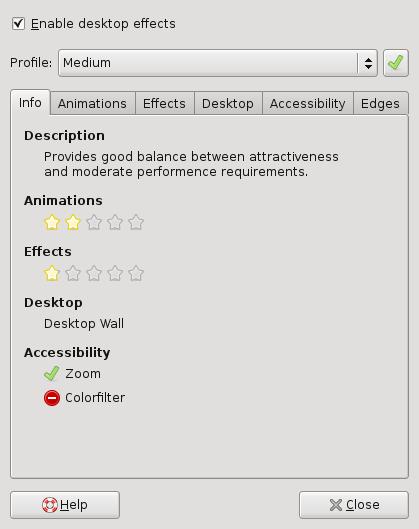
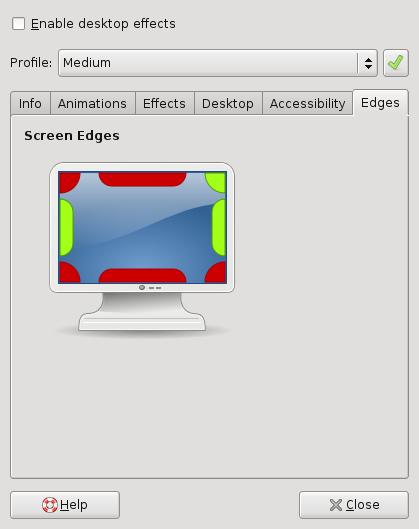
Compiz Fusion comes with a simple settings manager (Simple CCSM) which also allows you to enable and disable Compiz in both KDE and GNOME. It can be found as the Desktop Effects application in the main menu. From here you can change general settings and not have to worry about the details. You can choose from a selection of pre-configured profiles: from anything such as minimal effects, to the full-blown “Hollywood’s got Nothing” profile, giving you countless of extra effects and plugins.
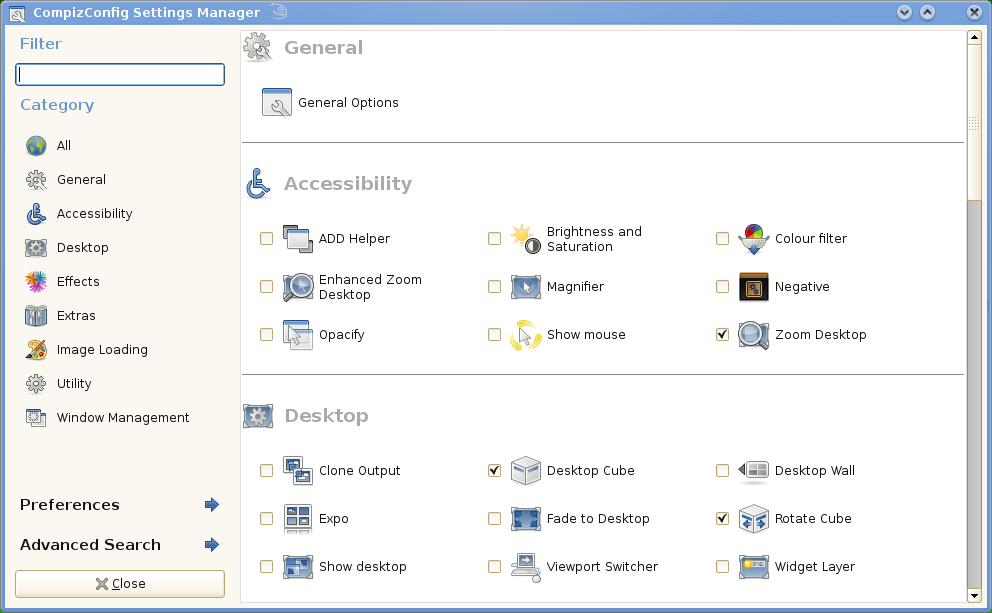
Compiz Fusion now also comes with an in-depth and highly configurable settings manager: CompizConfig Settings Manager (ccsm), which is also available by default in openSUSE 11.0. From here you can change a whole horde of settings so that Compiz behaves precisely as you want, or you can even choose to enable a large selection of extra plugins providing new eye-candy or helpful other additions. Be mindful about the performance impact that this might have on less powerful computers.
How To Create and modify ISO images
Features:
Create an ISO image from scratch.
Add or remove files and directories to/from a CD image.
Create bootable CDs using various boot record types: no-emulation (isolinux, Microsoft Windows), 1.2, 1.44 and 2.88 floppy disk emulation.
Support for Rock Ridge and Joliet file names.
ISO Master can read .ISO files (ISO9660, Joliet, RockRidge, and El Torito), most .NRG files, and some single-track .MDF files; it can save only as .ISO.
Download: Here
Default password list in the system/Application
Password Generic System
This following resources provide information about detail password in many type of system
http://www.phenoelit-us.org/dpl/dpl.html
http://www.cirt.net/passwords
http://www.dopeman.org/default_passwords.html
http://www.redoracle.com/index.php?option=com_password&task=rlist
http://www.virus.org/default-password/
2. Network Devices Specific (Router, Firewall, IPS System)
http://www.routerpasswords.com/
http://www.governmentsecurity.org/
3. System Specific
Oracle Specific
http://www.petefinnigan.com/default/default_password_list.htm
SAP Specific
http://www.petefinnigan.com/default/sap_default_users.htm
Cisco Specific
http://www.cisco.com/warp/public/707/cisco-sa-20040407-username.shtml
Security Audit Tool for Linux (must have) - Lynis

Lynis is an auditing tool for Unix (specialists). It scans the system configuration and creates an overview of system information and security issues usable by professional auditors.
This software aims in assisting automated auditing of Unix based systems and can be used in addition to other software, like security scanners, system benchmarking and fine tuning tools.
Examples of audit tests:
- Available authentication methods
- Expired SSL certificates
- Outdated software
- User accounts without password
- Incorrect file permissions
- Firewall auditing
Supported operating systems
- CentOS 5
- Debian 4.0
- Fedora Core 4 and higher
- FreeBSD 6.x, 7.0
- Mac OS X 10.x (Tiger, Leopard)
- Mandriva 2007
- OpenBSD 4.x
- OpenSolaris
- OpenSuSE
- PcBSD
- Red Hat, RHEL 5.x
- Slackware 12.1
- Ubuntu 7.04, 7.10, 8.04
Using Lynis : Basics
To run Lynis you should meet a few requirements:
- You have to be root (log in as normal user, su to root)
or have equivalent rights (for example by using sudo).
- Have write access to /var/log (for using a log/debug and report file)
- Have write access to /tmp (temporary files)
Depending on the installation or the path you run Lynis from, you can start it with 'lynis' (if installed and the file is available in your binary path) or 'sh lynis' or './lynis'.
Nipper - The Network Infrastructure Parser

Nipper enables network administrators, security professionals and auditors to quickly produce reports on key network infrastructure devices.
The report can include a detailed security audit of the device settings or be a configuration report, the output is customisable. Nipper supports a wide variety of devices from different manufacturers such as Cisco, Nokia, Juniper, CheckPoint and Nortel.
Installation:
If you have GNU make, then you can make use of the Makefile provided with Nipper. The procedure is as follows:
1. Download the latest Nipper source code - here.
2. Extract the source code.
3. Change directory to the source code directory.
4. Run make
5. As a privileged user, run make install
Device Support
Nipper supports a variety of different types of device from different manufacturers. With each new version of Nipper, this support is enhanced, expanded and more device types added. The current version of Nipper supports the following different types of device:
* Bay Networks Accelar
* CheckPoint VPN-1/Firewall-1
* Cisco Catalysts (IOS, CatOS and NMP)
* Cisco Content Services Switch (CSS)
* Cisco Routers (IOS)
* Cisco Security Applicances (PIX, ASA and FWSM)
* Juniper NetScreens
* Nokia IP Firewalls
* Notel Passports
* SonicWALL SonicOS Firewalls
Reporting
Nipper supports several different report formats with a good chance that more will be added in the future. The current supported formats are:
* HTML
* XML
* Latex
* ASCII text
The Kernel Boot Process
The previous post explained how computers boot up right up to the point where the boot loader, after stuffing the kernel image into memory, is about to jump into the kernel entry point. This last post about booting takes a look at the guts of the kernel to see how an operating system starts life. Since I have an empirical bent I’ll link heavily to the sources for Linux kernel 2.6.25.6 at the Linux Cross Reference. The sources are very readable if you are familiar with C-like syntax; even if you miss some details you can get the gist of what’s happening. The main obstacle is the lack of context around some of the code, such as when or why it runs or the underlying features of the machine. I hope to provide a bit of that context. Due to brevity (hah!) a lot of fun stuff - like interrupts and memory - gets only a nod for now. The post ends with the highlights for the Windows boot.
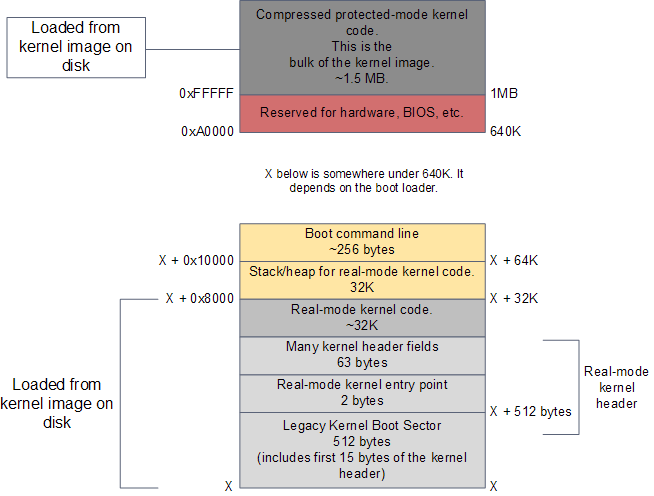
At this point in the Intel x86 boot story the processor is running in real-mode, is able to address 1 MB of memory, and RAM looks like this for a modern Linux system:
RAM contents after boot loader is done
The kernel image has been loaded to memory by the boot loader using the BIOS disk I/O services. This image is an exact copy of the file in your hard drive that contains the kernel, e.g. /boot/vmlinuz-2.6.22-14-server. The image is split into two pieces: a small part containing the real-mode kernel code is loaded below the 640K barrier; the bulk of the kernel, which runs in protected mode, is loaded after the first megabyte of memory.
The action starts in the real-mode kernel header pictured above. This region of memory is used to implement the Linux boot protocol between the boot loader and the kernel. Some of the values there are read by the boot loader while doing its work. These include amenities such as a human-readable string containing the kernel version, but also crucial information like the size of the real-mode kernel piece. The boot loader also writes values to this region, such as the memory address for the command-line parameters given by the user in the boot menu. Once the boot loader is finished it has filled in all of the parameters required by the kernel header. It’s then time to jump into the kernel entry point. The diagram below shows the code sequence for the kernel initialization, along with source directories, files, and line numbers:
Architecture-specific Linux Kernel Initialization
The early kernel start-up for the Intel architecture is in file arch/x86/boot/header.S. It’s in assembly language, which is rare for the kernel at large but common for boot code. The start of this file actually contains boot sector code, a left over from the days when Linux could work without a boot loader. Nowadays this boot sector, if executed, only prints a “bugger_off_msg” to the user and reboots. Modern boot loaders ignore this legacy code. After the boot sector code we have the first 15 bytes of the real-mode kernel header; these two pieces together add up to 512 bytes, the size of a typical disk sector on Intel hardware.
After these 512 bytes, at offset 0×200, we find the very first instruction that runs as part of the Linux kernel: the real-mode entry point. It’s in header.S:110 and it is a 2-byte jump written directly in machine code as 0×3aeb. You can verify this by running hexdump on your kernel image and seeing the bytes at that offset - just a sanity check to make sure it’s not all a dream. The boot loader jumps into this location when it is finished, which in turn jumps to header.S:229 where we have a regular assembly routine called start_of_setup. This short routine sets up a stack, zeroes the bss segment (the area that contains static variables, so they start with zero values) for the real-mode kernel and then jumps to good old C code at arch/x86/boot/main.c:122.
main() does some house keeping like detecting memory layout, setting a video mode, etc. It then calls go_to_protected_mode(). Before the CPU can be set to protected mode, however, a few tasks must be done. There are two main issues: interrupts and memory. In real-mode the interrupt vector table for the processor is always at memory address 0, whereas in protected mode the location of the interrupt vector table is stored in a CPU register called IDTR. Meanwhile, the translation of logical memory addresses (the ones programs manipulate) to linear memory addresses (a raw number from 0 to the top of the memory) is different between real-mode and protected mode. Protected mode requires a register called GDTR to be loaded with the address of a Global Descriptor Table for memory. So go_to_protected_mode() calls setup_idt() and setup_gdt() to install a temporary interrupt descriptor table and global descriptor table.
We’re now ready for the plunge into protected mode, which is done by protected_mode_jump, another assembly routine. This routine enables protected mode by setting the PE bit in the CR0 CPU register. At this point we’re running with paging disabled; paging is an optional feature of the processor, even in protected mode, and there’s no need for it yet. What’s important is that we’re no longer confined to the 640K barrier and can now address up to 4GB of RAM. The routine then calls the 32-bit kernel entry point, which is startup_32 for compressed kernels. This routine does some basic register initializations and calls decompress_kernel(), a C function to do the actual decompression.
decompress_kernel() prints the familiar “Decompressing Linux…” message. Decompression happens in-place and once it’s finished the uncompressed kernel image has overwritten the compressed one pictured in the first diagram. Hence the uncompressed contents also start at 1MB. decompress_kernel() then prints “done.” and the comforting “Booting the kernel.” By “Booting” it means a jump to the final entry point in this whole story, given to Linus by God himself atop Mountain Halti, which is the protected-mode kernel entry point at the start of the second megabyte of RAM (0×100000). That sacred location contains a routine called, uh, startup_32. But this one is in a different directory, you see.
The second incarnation of startup_32 is also an assembly routine, but it contains 32-bit mode initializations. It clears the bss segment for the protected-mode kernel (which is the true kernel that will now run until the machine reboots or shuts down), sets up the final global descriptor table for memory, builds page tables so that paging can be turned on, enables paging, initializes a stack, creates the final interrupt descriptor table, and finally jumps to to the architecture-independent kernel start-up, start_kernel(). The diagram below shows the code flow for the last leg of the boot:
Architecture-independent Linux Kernel Initialization
start_kernel() looks more like typical kernel code, which is nearly all C and machine independent. The function is a long list of calls to initializations of the various kernel subsystems and data structures. These include the scheduler, memory zones, time keeping, and so on. start_kernel() then calls rest_init(), at which point things are almost all working. rest_init() creates a kernel thread passing another function, kernel_init(), as the entry point. rest_init() then calls schedule() to kickstart task scheduling and goes to sleep by calling cpu_idle(), which is the idle thread for the Linux kernel. cpu_idle() runs forever and so does process zero, which hosts it. Whenever there is work to do - a runnable process - process zero gets booted out of the CPU, only to return when no runnable processes are available.
But here’s the kicker for us. This idle loop is the end of the long thread we followed since boot, it’s the final descendent of the very first jump executed by the processor after power up. All of this mess, from reset vector to BIOS to MBR to boot loader to real-mode kernel to protected-mode kernel, all of it leads right here, jump by jump by jump it ends in the idle loop for the boot processor, cpu_idle(). Which is really kind of cool. However, this can’t be the whole story otherwise the computer would do no work.
At this point, the kernel thread started previously is ready to kick in, displacing process 0 and its idle thread. And so it does, at which point kernel_init() starts running since it was given as the thread entry point. kernel_init() is responsible for initializing the remaining CPUs in the system, which have been halted since boot. All of the code we’ve seen so far has been executed in a single CPU, called the boot processor. As the other CPUs, called application processors, are started they come up in real-mode and must run through several initializations as well. Many of the code paths are common, as you can see in the code for startup_32, but there are slight forks taken by the late-coming application processors. Finally, kernel_init() calls init_post(), which tries to execute a user-mode process in the following order: /sbin/init, /etc/init, /bin/init, and /bin/sh. If all fail, the kernel will panic. Luckily init is usually there, and starts running as PID 1. It checks its configuration file to figure out which processes to launch, which might include X11 Windows, programs for logging in on the console, network daemons, and so on. Thus ends the boot process as yet another Linux box starts running somewhere. May your uptime be long and untroubled.
The process for Windows is similar in many ways, given the common architecture. Many of the same problems are faced and similar initializations must be done. When it comes to boot one of the biggest differences is that Windows packs all of the real-mode kernel code, and some of the initial protected mode code, into the boot loader itself (C:\NTLDR). So instead of having two regions in the same kernel image, Windows uses different binary images. Plus Linux completely separates boot loader and kernel; in a way this automatically falls out of the open source process. The diagram below shows the main bits for the Windows kernel:
Windows Kernel Initialization
The Windows user-mode start-up is naturally very different. There’s no /sbin/init, but rather Csrss.exe and Winlogon.exe. Winlogon spawns Services.exe, which starts all of the Windows Services, and Lsass.exe, the local security authentication subsystem. The classic Windows login dialog runs in the context of Winlogon.
This is the end of this boot series. Thanks everyone for reading and for feedback. I’m sorry some things got superficial treatment; I’ve gotta start somewhere and only so much fits into blog-sized bites. But nothing like a day after the next; my plan is to do regular “Software Illustrated” posts like this series along with other topics. Meanwhile, here are some resources:
- The best, most important resource, is source code for real kernels, either Linux or one of the BSDs.
- Intel publishes excellent Software Developer’s Manuals, which you can download for free.
- Understanding the Linux Kernel is a good book and walks through a lot of the Linux Kernel sources. It’s getting outdated and it’s dry, but I’d still recommend it to anyone who wants to grok the kernel. Linux Device Drivers is more fun, teaches well, but is limited in scope. Finally, Patrick Moroney suggested Linux Kernel Development by Robert Love in the comments for this post. I’ve heard other positive reviews for that book, so it sounds worth checking out.
- For Windows, the best reference by far is Windows Internals by David Solomon and Mark Russinovich, the latter of Sysinternals fame. This is a great book, well-written and thorough. The main downside is the lack of source code.
How to run IE (Internet Explorer) in OpenSuse
1. Add the WINE repository for openSUSE 11.
YaST2 -> Software -> Software Repositories.
http://download.opensuse.org/repositories/Emulators:/Wine/openSUSE_11.0/
2. Install the WINE and cabextract package.
YaST2 -> Software -> Software Management.
3. Download IEs4Linux from here or use the command line method shown below.
wget http://www.tatanka.com.br/ies4linux/downloads/ies4linux-latest.tar.gz
4. Extract and run the IEs4Linux installer. You don’t need to be root for this.
tar zxvf ies4linux-latest.tar.gz
cd ies4linux-*
./ies4linux
HowTo configure Dial-Up internet connection in Ubuntu
Click Point-to-Point connection, then fill in the dialog with your dial-up internet account details, as shown.
Click OK to confirm your selection, and you are done.
Click the modem tab, put in your modem device port, typically it should be a serial device or /dev/modem
Hopefully this should be able to help you get on the internet!atunes - iTunes/Winamp/Amarok killer
aTunes is a full-featured audio player and manager, developed in Java programming language, so it can be executed on different platforms: Windows, Linux and Unix-like systems, ...
Currently plays mp3, ogg, wma, wav, flac, mp4 and radio streaming, allowing users to easily edit tags, organize music and rip Audio CDs.
This media player uses the open source MPlayer engine and is built on Java, which means you can run it on pretty much any devices that supports Java. There's also a Windows installer which makes running aTunes on Windows.
Features:
* Supported formats: mp3, ogg, wma, wav, flac, mp4, ra, rm
* Online radio supported
* Player engine: mplayer
* Volume control, mute function
* Karaoke function
* Equalizer
* Shuffle and repeat options
* OSD (On-screen display)
More feature list
Download : here
How to install Microsoft Fonts in OpenSuse 11
Now to to your home directory type “cd /home/Username/ and type the following commands to get and install Microsoft Fonts on your OpenSuse 11 box.
wget http://download.opensuse.org/update/10.3/scripts/fetchmsttfonts.sh
chmod a+x fetchmsttfonts.sh
sudo sh fetchmsttfonts.sh
Once installation is done, you may delete the file fetchmsttfonts.sh of your desktop.
List of best Linux blogs
ubuntublog Good Ubuntu blog, with lots of good Ubuntu stuff, sadly it stopped in September this year
PolishLinux This is a great Linux site, it has really good stuff, and great content
LinuxHelp Good site with great stuff, frequently updated.
UbuntuEssentials Frequently updated Ubuntu Site
Ubuntu-Unleashed Another good site with great stuff about Ubuntu Linux
HowToGeek Great How to site, not only for Linux but its Linux section is great!.
LinuxScrew good site which is coming real popular these days, with great articles.
Fsckin Frequently updated Linux site, great tutorials, and good posts about games for Linux.
ArsGeek Not only a Linux site, but with a great Linux section.
Ubuntu Geek All about Ubuntu, from a real Geek
BashCuresCancer Site devoted to command Line, unfortunately not too frequently updated
Phorolinux Really good tutorials about Linux.
http://www.linux-gamers.net/ For Linux games, how tos, forums, etc. about Video Cards, and Games.
http://www.madpenguin.org/cms/ Madpenguin, News, forums, about Linux
Ars Technica Open Ended section: http://arstechnica.com/journals/linux.ars
DesktopLinux: http://www.desktoplinux.com/
GNOME Footnotes: http://gnomedesktop.org/
Phoronix: http://www.phoronix.com/ (lots of good Linux stories)
http://www.debuntu.org Debuntu
http://tweako.com/section/ubuntu Tweako ubuntu
http://www.ubuntux.org Ubuntux
http://gaming.gwos.org Ubuntu Gamers Arena
http://freshubuntu.org/ Fresh ubuntu
http://www.markshuttleworth.com mark shuttleworth's blog
http://onlyubuntu.blogspot.com only ubuntu
http://ubuntuos.com ubuntu os
http://ubuntudemon.wordpress.com ubuntu demon
http://ubuntu.philipcasey.com ubuntu learner
http://xubuntu.wordpress.com xubuntu blog
http://www.ubustu.com/ the ubuntu feed
http://simplyubuntu.wordpress.com simply ubuntu
http://ubuntuliving.blogspot.com ubuntu living
http://allaboutubuntu.wordpress.com all about ubuntu
http://ubuntuheaven.blogspot.com ubuntu heaven
http://ubuntufan.wordpress.com ubuntu fan
http://ubuntulinux.or.id/blog/ id ubuntu blogs
http://ubuntology.com ubuntology
http://thedailyubuntu.blogspot.com/ the daily ubuntu
http://ubuntufs.wordpress.com ubuntu fs
http://ralph.n3rds.net ralph's ubuntu linux blog
http://www.ubufied.com ubufied
http://planet.gnome.org planet gnome [same as planet kde]
http://planetkde.org planet kde [links to TONS of other blogs]
http://happypenguin.org happy penguin linux gaming
http://www.nuxified.org nuxified
http://www.linuxreality.com linux reality podcasts
http://www.tuxmagazine.com tux online magazine
http://linux.byexamples.com linux by examples
http://www.fsckin.com fscking with linux
http://www.linux-watch.com linux watch
http://www.linuxtavern.com linux tavern
http://www.linuxwins.com linux wins
http://www.oreillynet.com oreilly network
http://linuxtracker.org linux tracker
http://lwn.net/ lwn
http://www.tuxme.com tuxme
http://pimpyourlinux.com pimp your linux
http://www.geekreviewed.com/ [geeky blog w/ linux category]
http://www.osdir.com os dir
http://blog.mandriva.com mandriva blog
http://kerneltrap.org kernel trap [linux kernel news]
http://www.linuxsecurity.com linux security news
http://fullcirclemagazine.org *buntu blog [3 major buntus]
http://boycottnovell.com boycottnovell
http://radio.linuxquestions.org linux questions
http://talkaboutlinux.com talk about linux
http://linuxondesktop.blogspot.com linux on desktop
http://www.jonobacon.org ubuntu/myth tv linux blog
http://kmandla.wordpress.com K.Mandla’s linux blog
http://joey.ubuntu-rocks.org/blog ubuntu rocks
http://fslog.com free software blog
http://thetuxproject.com the tux project
http://savvygeek.com savvy geek
http://bapoumba.wordpress.com a linux blog
http://linuxpoison.blogspot.com linux poison blog
http://lindesk.com
http://alinuxblog.wordpress.com
For Firefox wallpapers : here
How to block/allow packets sent by specific Operating System with iptables?
In order to install OSF module, do the following:
1. Download latest release from here, for example as follows:
wget http://tservice.net.ru/~s0mbre/archive/osf/osf-2008_06_14.tar.gz
2. Edit Makefile from unpacked archive in order to set proper path to iptables headers (iptables.h and libiptc/ dir).
3. If your kernel sources can not be accessed via /lib/modules/$(shell uname -r)/build, you have to replace KDIR variable with the correct path to kernel sources.
4. Run make that should build ipt_osf.ko kernel module.
5. Run make lib that will build libipt_osf.so shared library (copy it to where all other iptables shared libs are placed in your distro e.g. /lib/iptables or /lib64/iptables in Fedora).
6. Run make bin that will build userspace applications which allows to load fingerprints and obtain information about matched packets (load, osfd, ucon_osf).
7. Download signatures list:
wget http://www.openbsd.org/cgi-bin/cvsweb/src/etc/pf.os
8. Install kernel module:
insmod ./ipt_osf.ko
9. Load signatures:
./load ./pf.os /proc/sys/net/ipv4/osf
10. Set up iptables rules allowing/disallowing packets generated by certain OS:
iptables -I INPUT -j ACCEPT -p tcp -m osf --genre Linux --log 0 --ttl 2
This example allows traffic from Linux systems and logs packets from other ones:
ipt_osf: Windows [2000:SP3:Windows XP Pro SP1, 2000 SP3]: 11.22.33.55:4024 -> 11.22.33.44:139
BTW, OSF has following options:
* --log
If present, OSF will log determined genres even if they don't match desired one.
0 - log all matched and unknown entries.
1 - only first one.
2 - log all matched entries.
* --ttl
0 - true ip and fingerprint TTL comparison. Works for LAN.
1 - check if ip TTL is less than fingerprint one. Works for global addresses.
2 - do not compare TTL at all. Allows to detect NMAP, but can produce false results.
* --connector
If present, OSF will log all events also through netlink connector(1.0 id).
More about connector can be found in Documentation/connector in kernel source tree.
[Thanks - http://www.linuxscrew.com/]
Domain Masquerading in Sendmail
In such a scenario, sendmail can be configured to masquerade the domain name (From test.com to other.com), effectively.
Before changing the default sendmail configuration, the Sendmail Configuration Files and the M4 macro processor must be installed. M4 reads the sendmail.mc file and produces the sendmail.cf configuration file read by the sendmail application.
Next, we need to modify the sendmail.mc file, located in /etc/mail. We’re mainly concerned with the MASQUERADE_AS, masquerade_envelope and masquerade_entire_domain lines. These lines will be prefixed with delete through newline (dnl) statements. Delete dnl from the beginning of
dnl MASQUERADE_AS(`other.com’)
dnl, FEATURE(masquerade_envelope)
dnl and FEATURE(masquerade_entire_domain)
Change the MASQUERADE_AS line to reflect the domain name (other.com) that the from address should display (domain of outgoing mail).
Now any user which send the mail with address username@test.com will have username@other.com as a display name going out from this sendmail.
Check you Disk speed
# hdparm -tT /dev/hda
/dev/hda:
Timing cached reads: 732 MB in 2.00 seconds = 365.20 MB/sec
Timing buffered disk reads: 114 MB in 3.05 seconds = 37.38 MB/sec
Substitute /dev/hda with the name of your disk device.
How To do a quick Network Performance Test
FTP on Linux and other Unix systems allows you to pass shell commands to the ftp client by using the pipe symbol ‘|’ as the first character of the file name. With this feature you can send a very large file to a remote host using /dev/zero as input and /dev/null as output.
Example:
ftp> put “|dd if=/dev/zero bs=1M count=100″ /dev/null
This command transfers a large file without involving the disk and without having to cache the file in memory. If you use a large file on a disk it might become a bottleneck. In this example, “|dd if=/dev/zero bs=1M count=100″ becomes the input file. Since a dd command without the “of=” paramater prints the content of the file to standard output (stdout), the ftp client can read the output and pass it on to the remote file which is /dev/null on the remote host.
Multimedia support in OpenSuse 11 (MP3, MPEG-4, DiVX, etc.)
Things that will not work in OpenSuse 11.0
On openSUSE 11.0 it is no longer possible to enable or disable Xgl with a graphical tool (such as gnome-xgl-settings in the past). Only the command line tool xgl-switch is still left to do this job. Instead AIGLX is now always enabled on supported hardware. There are still some issues with AIGLX (e.g., Xvideo is usually slower, OpenGL applications are misplaced when you rotate compiz' cube), but the majority of our customers are requesting to have AIGLX enabled by default. If you prefer Xgl over AIGLX use the command line tool xgl-switch to enable it:
xgl-switch --enable-xgl
If there are problems after enabling it (Xserver crashes, etc.) disable it again by running
xgl-switch --disable-xgl
The proprietary NVIDIA driver needs neither AIGLX nor Xgl for running with compositing managers as it provides its own framework. To enable Compiz, use "Desktop Effects (simple-ccsm)" application from the application menu.
Inode Size on the Ext3 Filesystem Increased
The inode size on the ext3 filesystem is increased from 128 to 256 by default. This change breaks many existing ext3 tools such as the windows tool EXTFS. If you depend on such tools, install openSUSE with the old value.
Press Ctrl-Alt-Backspace Twice to Terminate the X Server
Pressing Ctrl-Alt-Backspace on GNOME, KDE, or any other graphical desktop does not terminate the X server any longer. If you press Ctrl-Alt-Backspace within 2 seconds again, it terminates the X server. On most hardware you hear a beep after the first Ctrl-Alt-Backspace press.
Check errors in NIC from command line
Ifconfig Error Output
wlan0 Link encap:Ethernet HWaddr 00:06:25:09:6A:D7
BROADCAST MULTICAST MTU:1500 Metric:1
RX packets:2924 errors:0 dropped:0 overruns:0 frame:0
TX packets:2287 errors:0 dropped:0 overruns:0 carrier:0
collisions:0 txqueuelen:100
RX bytes:180948 (176.7 Kb) TX bytes:166377 (162.4 Kb)
Interrupt:10 Memory:c88b5000-c88b6000
ethtool Error Output
The ethtool command can provide a much more detailed report when used with the -S switch.
[root@poison root]# ethtool -S eth0
NIC statistics:
rx_packets: 1669993
tx_packets: 627631
rx_bytes: 361714034
tx_bytes: 88228145
rx_errors: 0
tx_errors: 0
rx_dropped: 0
tx_dropped: 0
multicast: 0
collisions: 0
rx_length_errors: 0
rx_over_errors: 0
rx_crc_errors: 0
rx_frame_errors: 0
rx_fifo_errors: 0
rx_missed_errors: 0
tx_aborted_errors: 0
tx_carrier_errors: 0
tx_fifo_errors: 0
tx_heartbeat_errors: 0
tx_window_errors: 0
tx_deferred: 0
tx_single_collisions: 0
tx_multi_collisions: 0
tx_flow_control_pause: 0
rx_flow_control_pause: 0
rx_flow_control_unsupported: 0
tx_tco_packets: 0
rx_tco_packets: 0
Take a close look at errors sections in the above output
Squid Password Authentication Using NCSA
1) Create the password file. The name of the password file should be /etc/squid/squid_passwd, and you need to make sure that it’s universally readable.
# touch /etc/squid/squid_passwd
# chmod o+r /etc/squid/squid_passwd
2) Use the htpasswd program to add users to the password file. You can add users at anytime without having to restart Squid. In this case, you add a username called nikesh:
# htpasswd /etc/squid/squid_passwd nikeshNew
password:Re-type new password:
Adding password for user nikesh
3) Find your ncsa_auth file using the locate/find command. (different distro stores this file at different locations)
# locate ncsa_auth/usr/lib/squid/ncsa_auth
4) Edit squid.conf; specifically, you need to define the authentication program in squid.conf, which is in this case ncsa_auth. Next, create an ACL named ncsa_users with the REQUIRED keyword that forces Squid to use the NCSA auth_param method you defined previously. Finally, create an http_access entry that allows traffic that matches the ncsa_users ACL entry. Here’s a simple user authentication example; the order of the statements is important:
## Add this to the auth_param section of squid.conf
auth_param basic program /usr/lib/squid/ncsa_auth /etc/squid/squid_passwd
# Add this to the bottom of the ACL section of squid.conf
acl ncsa_users proxy_auth REQUIRED
# Add this at the top of the http_access section of squid.conf
http_access allow ncsa_users
Remember to restart Squid for the changes to take effect.
Its time to upgrade from OpenSuse 10.x to OpenSuse 11.0
QT4 Installer:
Obviously the first thing you see when you upgrade / install an operating system is the installer screen. openSUSE 11.0 introduces a beautifully designed new QT 4 installer, that runs circles around any current Windows / Linux or Mac OX Installer (in terms of looks).
Package Management (Zypper):
Zypper has gone through MANY changes since it’s time in openSUSE 10.3. Currently 11.0 is running zypper 0.11.6-4.1, and package management is done so much smarter and faster (installing application, updating repo’s everything is much faster on openSUSE 11.0 then it was in previous versions).
Xorg:
Xorg has been updated to 7.3 (upgraded from 7.2 in openSUSE 10.3) and has many updates to Intel / Nvidia based xorg drivers. (if running Nvidia / ATI I recommend installing ATI / Nvidia proprietary drivers). Also note that AIGLX is enabled by default now.
Kernel:
openSUSE 11.0 ships with the pae kernel by default and is version 2.6.25 which has seen many improvements in virtualization, scheduling and obviously hardware support since 10.3’s release with 2.6.22.
KDE 3.5.9:
Has many improvements from KDE 3.5.7 which shipped with openSUSE 10.3. Many enhancements were done to PIM (Personal Identification Manager, ie Kmail, Kontact etc) along with many bugfixes since then.
KDE 4:
Although KDE 4.1 wasn’t released in time for openSUSE 11.0 you can upgrade to it using one of the openSUSE Build Services. With that said, openSUSE 11.0 ships with KDE 4.0.4 and will stay with that line for the life of the product. I honestly think it is on its way to being a very kick ass Desktop Environment, BUT, I just cannot afford to use it as my default DE on my production machines, since there are still some issues (mostly in plasma).
GNOME 2.22:
Pretty much enough said on that. GNOME 2.22 had many many improvements in everypart of GNOME, which can be found here:
http://library.gnome.org/misc/release-notes/2.22/
There are tons of other reasons and updates that have been done, that I haven’t captured in this quick blog. This is just to help steer the people on the grasps of “Should I upgrade or not” to just go ahead and do it. Many of the other notable updates are:
NetworkManager (although it still has a few issues with communication with YaST configurations)
OpenOffice (2.4.1).
Wine (1.0 rc by default but with the release of 1.0 today, I expect it to make the update repo).
Amarok (1.4.9.1)
If you feel I’ve missed something important please let me know and i’ll add.
The most important things though:
If you find a bug report it http://bugzilla.novell.com
This will help openSUSE mature more, and make 11.x be a great long lasting distribution.
GRE Tunneling How to
So we have network A:
network 10.0.1.0
netmask 255.255.255.0
router 10.0.1.1
Internet 172.16.17.18
and network B:
network 10.0.2.0
netmask 255.255.255.0
router 10.0.2.1
Internet 172.19.20.21
On the router of network A, you do the following:
ip tunnel add B mode gre remote 172.19.20.21 local 172.16.17.18 ttl 255
ip addr add 10.0.1.1 dev B
ip link set B up
ip link set B mtu 1514
ip route add 10.0.2.0/24 dev B
let’s go on with the router of the network B
ip tunnel add A mode gre remote 172.16.17.18 local 172.19.20.21 ttl 255
ip addr add 10.0.2.1 dev A
ip link set A up
ip link set A mtu 1514
ip route add 10.0.1.0/24 dev A
If you want to delete the tunnel.
ip link set B down
ip tunnel del B
Of course, you can replace B with A for the A router
Block Messenger (AOL, Yahoo, MSN) services through Squid and Iptables
LAN. Add this to your squid.conf:
httpd_accel_host virtual
httpd_accel_port 80
httpd_accel_with_proxy on
httpd_accel_uses_host_header on
And this to your IPTABLES:
iptables -t nat -A PREROUTING -i eth1 -p tcp –dport 80 -j REDIRECT –to-port 3128
iptables -A OUTPUT -j ACCEPT -m state –state NEW,ESTABLISHED,RELATED
-o eth0 -p tcp –dport 80
…where eth0 is your external interface and eth1 your internal.
To block AOL IM and ICQ:
# iptables -A FORWARD –dport 5190 -j DROP
# iptables -A FORWARD -d login.oscar.aol.com -j DROP
To block MSN messenger:
# iptables -A FORWARD -p TCP –dport 1863 -j DROP
# iptables -A FORWARD -d 64.4.13.0/24 -j DROP
Kaaza Blocking
iptables -t nat -A POSTROUTING -s 150.100.16.0/255.255.240.0 -d ! 150.100.16.0/255.255.240.0 –dport 1214 –j DROP
Add following in squid.conf file
# Yahoo Messenger service
acl Yahoo-Mess dst 24.71.200.68/32 204.71.202.73/32 204.71.200.0/24
204.71.177.35/32 204.71.202.59/32 204.71.202.58/32 216.115.105.214/32
204.71.201.47/32 204.71.201.48/32 216.115.105.215/32
216.136.172.221/32 *.msg.yahoo.com
http_access deny Yahoo-Mess
# Trillian service
acl Trillian-Mess dst 66.216.70.167/32
http_access deny Trillian-Mess
How to create a self signed certificates for Java Applets
2. Install JDK and set the class-path/path
3. Generate key: keytool -genkey -keyalg rsa -alias key
Enter keystore password:
What is your first and last name?
[Unknown]: Nikesh
What is the name of your organizational unit?
[Unknown]: Cybage
What is the name of your organization?
[Unknown]: Cybage
What is the name of your City or Locality?
[Unknown]: Pune
What is the name of your State or Province?
[Unknown]: MH
What is the two-letter country code for this unit?
[Unknown]: IN
Is CN=Nikesh, OU=Cybage, O=Cybage, L=Pune, ST=MH, C=IN correct?
[no]: yes
(wait...)
Enter key password for
(RETURN if same as keystore password):
Re-enter new password:
(press [enter])
4. Export key: keytool -export -alias key -file cert.crt
Enter keystore password: *******
Certificate stored in file cert.crt
5. Create JAR: jar cvf applet.jar main.class
Add all classes used in your project by typing the classnames in the same line.
added manifest
adding: main.class(in = 671) (out= 460)(deflated 31%)
6. Verify JAR: jar tvf applet.jar
0 Fri Jun 20 17:51:38 IST 2008 META-INF/
68 Fri Jun 20 17:51:38 IST 2008 META-INF/MANIFEST.MF
671 Wed Jun 18 11:48:34 IST 2008 main.class
7. Sign JAR: jarsigner applet.jar key
Enter Passphrase for keystore:******
Warning:
The signer certificate will expire within six months.
8. Verifiy Signing: jarsigner -verify -verbose -certs applet.jar
131 Fri Jun 20 17:53:04 IST 2008 META-INF/MANIFEST.MF
252 Fri Jun 20 17:53:04 IST 2008 META-INF/KEY.SF
889 Fri Jun 20 17:53:04 IST 2008 META-INF/KEY.RSA
0 Fri Jun 20 17:51:38 IST 2008 META-INF/
smk 671 Wed Jun 18 11:48:34 IST 2008 main.class
X.509, CN=Nikesh, OU=Cybage, O=Cybage, L=Pune, ST=MH, C=IN (key)
[certificate will expire on 9/18/08 5:47 PM]
s = signature was verified
m = entry is listed in manifest
k = at least one certificate was found in keystore
i = at least one certificate was found in identity scope
jar verified.
Warning:
This jar contains entries whose signer certificate will expire within six months.
9. Create HTML-File for use of the Applet
Few Quick How To’s for Fedora
fdisk -l
How to list filesystem disk space usage
df -T -h
How to list mounted devices
mount
How to list PCI devices
lspci or /sbin/lspci
If the first does not work try the latter.
How to list USB devices
lsusb
How to forcefully unmount CD/DVD-ROM manually
umount /media/cdrom0/ -l
How to remount /etc/fstab without rebooting
mount -a
How to generate MD5 checksum files
md5sum file.iso > file.iso.md5
How to check MD5 checksum of files
e.g. Assumed that file.iso and file.iso.md5 are in the same folder
md5sum -c file.iso.md5
How to mount/unmount Image (ISO) files without burning
mkdir /media/iso
modprobe loop
mount file.iso /media/iso/ -t iso9660 -o loop
umount /media/iso/
How to change computer name
hostname your_new_computer_name
How to access network folders without mounting
e.g. Assumed that network connections have been configured properly
Network computer’s IP: 192.168.0.1
Shared folder’s name: linux
smb://192.168.0.1/linux
How to connect into remote Fedora desktop
e.g. Assumed that remote Fedora machine have configured Remote Desktop
Remote Fedora machine: 192.168.0.1
vncviewer -fullscreen 192.168.0.1:0
How to install support for NTFS
yum -y install kernel-module-ntfs-$(uname -r)
How to disable history listing in Console mode
rm -f $HOME/.bash_history
touch $HOME/.bash_history
chmod 000 $HOME/.bash_history
How to use Fedora Installation CD, to gain root user access
Insert Fedora CD #1 into your CD-ROM and boot from it
linux rescue
How to restart GNOME/KDE without rebooting computer
Press ‘Ctrl + Alt + Backspace’
How to switch to Console mode in GNOME/KDE
Press ‘Ctrl + Alt + F1′ (F2 - F6)
To switch back to GNOME/KDE modePress ‘Alt + F7′
How to install/uninstall .rpm files
To install .rpm filerpm -i package_file.rpm
To uninstall .rpm filerpm -e package_name
How to set System-wide Environment Variables
cp /etc/bash.bashrc /etc/bash.bashrc_backupg
edit /etc/bash.bashrc
Append the System-wide Environment Variables at the end of file and save.
How to save “man” outputs into files
man command | col -b > file.txt
How to convert Wallpaper to Splash Image for GRUB menu
convert -resize 640×480 -colors 14 wallpaper.png
splashimage.xpm && gzip splashimage.xpm
cachemgr (Cache Manager) configuration for Squid
To make this configuration you need a webserver (Apache) running and configured.
1) Try to locate your cachemgr.cgi file which comes with the squid package, this can be done using rpm -ql command (different distro stores this file at different location), here you can also use locate/find command.
# rpm -ql squid | grep cachemgr.cgi
/usr/share/doc/packages/squid/scripts/cachemgr.cgi
/usr/share/man/man8/cachemgr.cgi.8.gz
In this case my cachemgr.cgi is in /usr/share/doc/packages/squid/scripts/ directory
2) Copy cachemgr.cgi file to your configure script alias (/var/www/cgi-bin) directory of you Apache
3) Open squid.conf file and insert following two parameters at the end of the file
cache_mgr nikesh@domain.com
cachemgr_passwd your_Password all
4) Restart your squid and open your browser and type
http://localhost/cgi-bin/cachemgr.cgi
you should see something like … , provide a configure e-mail and password (mentioned above)

Couple of easy steps to Speed Up Linux
Login with root account, go to console and fire command “ntsysv”, you should see something similar to this…
Now stop all the unwanted services and restart your box, you should see some decrease in your booting time.Note: If your not aware of what all these services means, please do some google or use command “system-config-services” which provides a good looking GUI interface and also provide some short description about all these services.
For suse use - They can use "yast2" to lookup the services.
2) Need to get more out of your linux
As per man pages of “mount” command, we have some good option to speed up the access of files from your HDD … “noatime option do not update inode access times on file system (e.g, for faster access on the news spool to speed up news servers)”So if we update the our fstab file and mount our root partition (/) with “noatime” will surely increase the speed of our box, (This is how you can do this - have similar entry for your “/” partition in your fstab file)
LABEL=/ / ext3 defaults,noatime 1 1
What is TTL - "Time To Live"
Pinging www.google.com [72.14.205.104] with 32 bytes of data:
Reply from 72.14.205.104: bytes=32 time=365ms TTL=242
Reply from 72.14.205.104: bytes=32 time=367ms TTL=242
Reply from 72.14.205.104: bytes=32 time=370ms TTL=242
Reply from 72.14.205.104: bytes=32 time=366ms TTL=242
Each IP packet has a Time to Live (TTL) section that keeps track of the number of network devices the packet has passed through to reach its destination. The server sending the packet sets the initial TTL value, and each network device that the packet passes through then reduces this value by 1. If the TTL value reaches 0, the next network device will discard the packet.
This mechanism helps to ensure that bad routing on the Internet won’t cause packets to aimlessly loop around the network without being removed. TTLs therefore help to reduce the clogging of data circuits with unnecessary traffic.
Execute a task ‘at’ the time you want
At the prompt type this command followed by
$ at 2359
The moment you press Enter the prompt changes into an arrow indicating that more information is required by Linux. Type the following command assuming you have installed XMMS player which plays mp3 files and that you actually have a mp3 file in the directory shown below
> xmms /home/david/mp3s/rock_my_world.mp3
Once you have typed the above press
Thats it. Now Linux will make the XMMS player to play the particular mp3 file at the time 23:59. Thats just a minute before midnight. Linux surely rocks your world !! ;-)
Basically if you are using the 24 hour clock then you enter the time you want with the hours and the minutes together one after another. Hours = 0-23 & Minutes = 0-59. Then type the exact command that you would have typed had you wanted to execute the task manually. If you want you can issue more commands after the first one. Once you finish entering all the tasks press
Monitor your hardware Temperature - Ubuntu

Computer Temperature Monitor is a little applet for the GNOME desktop that shows the temperature of your computer CPU and disks on screen. It allows you to log temperatures to a file. You can set alarms to notify you when a tempertature is reached.


HowTo solve the problem of apache/sendmail hangs During Startup
If you are having trouble with the Apache-based httpd service or Sendmail hanging at startup, make sure the following line is in the /etc/hosts file:
127.0.0.1 localhost.localdomain localhost
Limit users access to a time range
Take a look at /etc/security/time.conf
To limit for example ssh access from 23:00 PM and 08:00 AM.
sshd;*;*;!Al2300-0800
The format of the file is:
Service;ttys;users;time
the !Al means, anything except "All the days".
If you would like to permit people from 4 to 8 PM all the days, except root:
login;*;!root;!Al1600-2000
Further reading: man time.conf
HowTo do X11 Forwarding over an SSH connection
ssh -Y
When an X program is run from the secure shell prompt, the SSH client and server create a new secure channel, and the X program data is sent over that channel to the client machine transparently.
What is Challenge Handshake Authentication Protocol (CHAP)
The CHAP authentication scheme is used primarily by Point to Point Protocol (PPP) servers as a way to validate the identity of remote clients (perhaps most commonly used by internet service providers). At random time intervals, CHAP verifies the identity of the client by using something known as a three-way handshake. This verification is performed using a credential which is known to both the client and the service (typically the user's password).
After the link between the client and the server (also known as the authenticator) has been established it sends a challenge message to the peer. The peer subsequently responds to the authenticator with a hashed value calculated using the Message Digest (MD5) hashing algorithm. The authenticator checks the client response against its own calculation of the expected hash value. If the two values match, the authenticator acknowledges the authentication. If the values do not match, the connect is terminated. These steps are repeated at random intervals.
It is important to note that Microsoft has also implemented two variants of the Challenge Handshake Authentication Protocol, called MS-CHAP and MS-CHAP-v2.
World's fastest supercomputer runs RedHat Linux
The Roadrunner was built for the Department of Energy's National Nuclear Security Administration and will be soon be shipped to its new home at Los Alamos National Laboratory in New Mexico. There, it will be put to work monitoring the nation's nuclear weapons stockpile, but will also be available for research into astronomy, energy, human genome science, and climate change, says IBM.
Like Blue Gene and some 75 percent of the world's supercomputers, the $100 million Roadrunner runs Linux. As with most of them, the new world record-holder runs multiple instances of Linux over a cluster of interconnected computers.
More
How To install RMP packages in Ubuntu
Run this command to install alien and other necessary packages:
sudo apt-get install alien dpkg-dev debhelper build-essential
To convert a package from rpm to debian format, use this command syntax. The sudo may not be necessary, but we'll include it just in case.
sudo alien packagename.rpm
To install the package, you'll use the dpkg utility, which is the internal package management tool behind debian and Ubuntu.
sudo dpkg -i packagename.deb
The package should now be installed, providing it's compatible with your system.
Thanks to : http://www.howtogeek.com
Reinstall Ubuntu Grub Bootloader
2) Open a Terminal and type in the following commands, note that hd0,0 implies the first hard drive and the first partition on that drive, which is where you probably installed grub to during installation. If not, then adjust accordingly.
sudo grub
> root (hd0,0)
> setup (hd0)
> exit
Reboot (removing the livecd), and your boot menu should be back.
Installing Fedora from the hard drive (without a boot CD).
Get the Fedora Core DVD iso from http://fedoraproject.org/en/get-fedora and save the disk image to a partition on your hard drive that will not be formatted during the installation.
If you have a FAT32 partition that you use to share data with Windows on a dual boot system like mine then this is an ideal place. Otherwise any Linux partition (ext2, ext3) will do as long as it can be read by the installation program (for this reason an NTFS formatted windows partition will not work).
Also make sure that the partition is large enough to hold the file as the Fedora DVD weights in around 3+ Gb.
Mount the downloaded iso file
Next we need to mount the iso so we can read the contents, open a terminal and as root run the following command. The iso can be mounted anywhere but in my case I'll create a folder in my home directory and mount it there.
$ mkdir ~/FedoraInstall
$ mount -o loop -t iso9660 /mnt/fat/dualboot/F-9-i386-DVD.iso FedoraInstall/
Replace /mnt/fat/dualboot/F-9-i386-DVD.iso with the location of your saved DVD iso file and FedoraInstall with your desired mount point. Now you should be able to browse the contents of the install iso from the command line or Nautilus.
Copy the boot files
Next go into the newly created mounted files and find the directory called isolinux, From the command line do the following.
$ cd ~/FedoraInstall/isolinux/
$ ls
boot.cat initrd.img memtest rescue.msg vmlinuz
boot.msg isolinux.bin options.msg splash.lss
general.msg isolinux.cfg param.msg TRANS.TBL
Copy the files called initrd.img and vmlinuz to your /boot directory (you will need to be root to write files to the boot directory)
$ cp initrd.img vmlinuz /boot/
If you wish to rename these files to make them easier to identify in the future that's OK as long as you know what they are called for the next step. I'll rename them with the name -installFC8, again root login is required.
$ cd /boot/
$ mv initrd.img initrd-installFC8.img
$ mv vmlinuz vmlinuz-installFC8
Edit your grub.conf
Finally we need to add an entry to our grub.conf file to give us the option of booting into the installer and to tell grub where to find the boot files we just copied. Open the file /etc/grub.conf with a text editor (as root) and add the following lines.
title Fedora 9 install
root (hd0,2)
kernel /vmlinuz-install ro
initrd /initrd-install.img
The title is up to you but be sure to replace the root (hd0,2) with the correct information from your system. The easiest way is just to copy the entry from your other grub entries. In my case I also have:
title Fedora (2.6.24.1-41.fc8)
root (hd0,2)
kernel /vmlinuz-2.6.22.1-41.fc8 ro root=/dev/VolGroup00/LogVol00 quiet vga=834
So just use the value from your other boot target. Also if you renamed the initrd.img and vmlinuz files use the names that apply to you. Save and close the file.
Reboot into the installer.
Next reboot your computer and from the list of boot targets select the 'Fedora 9 install' entry. The installer will then run presenting you with a screen first asking for your language and keyboard layout.
The next screen asks for the install source, select 'Hard Drive' from the list. From the screen shown below select the partition on your hard drive that contains the Fedora iso you downloaded along with the directory containing the image (as instructed you can press F2 here to
browse for the iso file).

Thanks to : http://bobpeers.com/
Firefox vs. Safari vs. IE vs. Opera
Web 2.0 applications and sites place the focus firmly on browser performance. Anyone who still believes that the speed of your DSL connection is the only potential bottleneck is gravely mistaken. Key parts of Ajax applications run locally, which means that — all other things being equal — the speed of the browser will be crucial in determining the user experience. For Ajax-based business applications, the browser becomes even more important because data will be accessed from within-firewall servers rather than the internet. Companies deploying such solutions will be able to improve employee productivity by paying attention to browser performance.
More
Ubuntu 8.04 vs. Fedora 9
...in the past three years, a few distributions have made stupendous leaps in performance and usability, winning the affection of millions of mainstream desktop users.
The recent releases of Ubuntu 8.04 and Fedora 9 — two top Linux distributions — mark another step forward in the evolution of the Linux desktop. I've been running both of them to see which offers the better blend of usability and advanced features.
More
How to protect your server from DDos Attack
On the Internet, a distributed denial-of-service (DDoS) attack is one in which a multitude of compromised systems attack a single target, thereby causing denial of service for users of the targeted system. The flood of incoming messages to the target system essentially forces it to shut down, thereby denying service to the system to legitimate users.
There is a perl script which prevent this:
First do the Installation of a simple perl script:
wget http://www.inetbase.com/scripts/ddos/install.sh
chmod 0700 install.sh
./install.sh
Uninstalling:
wget http://www.inetbase.com/scripts/ddos/uninstall.ddos
chmod 0700 uninstall.ddos
./uninstall.ddos
When you run this Perl script, it will then run an netstat command check how many times each IP is connected and if there are more then the number of connections you specified then it will automatically run a command in APF for the IP to be banned.
HowTo Create a Driver Diskette from an Image File
To create a driver diskette from a driver diskette image:
-
Insert a blank, formatted diskette into the first diskette drive.
-
From the same directory containing the driver diskette image, such as drvnet.img, type
dd if=drvnet.img of=/dev/fd0 as root.
How to rename all files in directory at once
tar zxvf mvb_1.6.tgz -C /usr/share/
chown -R root:root /usr/share/mvb_1.6/
ln -fs /usr/share/mvb_1.6/mvb /usr/bin/mvb
To rename all files in directory at once
mvb NEW_NAME
How to add multiple IP addresses manually?
# ifconfig
will output all the configured addresses. For example:
eth0: inet addr:10.10.10.10 Bcast:10.10.10.255 Mask:255.255.255.0
...... and more information.
To add on extra IP addresses type:
# ifconfig eth0:1 11.11.11.12 netmask 255.255.255.0
for additional IP addresses, make sure you increment the 1 in eth0:1, for example, a third IP address (third one including your BASE IP) would be added:
# ifconfig eth0:2 11.11.11.13 netmask 255.255.255.0
Hope it helps anyone struggling!
Windows COM Ports equivalent in Linux
| Devices | Windows Com Port | Linux equivalent |
| Mouse | COM 1 | /dev/ttyS0 |
| External Modem | COM 2 | /dev/ttyS1 |
| Floppy Drive | Normal Floppy cable | /dev/fd0 |
| Printer | Lpt Port | /dev/lp0 |
| CDROM Drive | IDE cable | /dev/cdrom |
How to quickly bind a range of IPs on RedHat based systems
Normally when you add a new IP to a network interface in a RedHat based system you create a file ifcfg-eth0:x in /etc/sysconfig/network-scripts/. For example:
/etc/sysconfig/network-scripts/ifcfg-eth0:0
DEVICE=eth0:0
ONBOOT=yes
BOOTPROTO=static
IPADDR=192.168.0.100
NETMASK=255.255.255.0
NETWORK=192.168.0.0
BROADCAST=192.168.0.255
TYPE=Ethernet Similar to the above example you can create several aliases. But what if you have to add a lot of IPs that are in a range like this? Let’s say that I want to add 100 IPs this way… this is possible, but not very effective, right? RedHat based systems offer a method to bind a range of IPs in a quick way allowing us to eliminate the need to create a lot of files and saving us time doing this.
Create a file /etc/sysconfig/network-scripts/ifcfg-eth0-range0 if this doesn’t exist, or just add to it if you already have it, the following lines:
/etc/sysconfig/network-scripts/ifcfg-eth0-range0
IPADDR_START=192.168.0.100
IPADDR_END=192.168.0.200
CLONENUM_START=0 where: IPADDR_START is the first IP and IPADDR_END is the last IP in the range. CLONENUM_START is the number that will be assigned to the first IP alias interface (eth0:0 in this example).
If you need to add more ranges of IPs then just use a different file for ex. ifcfg-eth0-range1, for each one of the ranges. You need to be careful and use the proper CLONENUM_START to not overwrite other aliases. Once you have configured the range/s of IPs you just need to restart the network service in order to activate it:
service network restartSending email attachments from linux command line
$ mutt -s "Logs" -a http_access.log nikesh@domain.com
Or Without subject:
$ echo | mutt -a [file] [mail@address.com]
Mutt website: http://www.mutt.org/.
Disable users from loggin into the server, except the administrator
1) Edit the pam file for the service you want to control, in this example i modify ssh pam control file, located in /etc/pam.d/sshd
Add this line
account required pam_nologin.so
2) Create the /etc/nologin file, just do "touch /etc/nologin"
This should disable the login from ssh. If you want to disable the login from terminal, modify the /etc/pam.d/login file.
3) To re-enable the login just remove /etc/nologin
Install PHP5 on Ubuntu

PHP is a general-purpose scripting language suited for Web development. The PHP script can be embedded into HTML. This section explains how to install and configure PHP5 in Ubuntu System
Installation
To install PHP5 you can enter the following command in the terminal prompt:
sudo apt-get install php5 libapache2-mod-php5
You can run PHP5 scripts from command line. To run PHP5 scripts from command line you should install php5-cli package. To install php5-cli you can enter the following command in the terminal prompt:
sudo apt-get install php5-cli
You can also execute PHP5 scripts without installing PHP5 Apache module. To accomplish this, you should install php5-cgi package. You can run the following command in a terminal prompt to install php5-cgi package:
sudo apt-get install php5-cgi
To use MySQL with PHP5 you should install php5-mysql package. To install php5-mysql you can enter the following command in the terminal prompt:
sudo apt-get install php5-mysql
Checking your CDs with cdck
Therefor it is good to have a little tool that analyzes your discs properly so that you can make a backup in time. Such a tool is cdck. It's just a small command-line program, but as many Unix-tools it is a specialized tool which does it's job right.
google gadgets for linux

Convert your videos quickly, easily, and all at once with WinFF and FFmpeg

WinFF is a GUI for the command line video converter, FFMPEG. It will convert most any video file that FFmpeg will convert. WinFF does multiple files in multiple formats at one time. You can for example convert mpeg's, flv's, and mov's, all into avi's all at once. WinFF is available for Windows 95, 98 , ME, NT, XP, VISTA, and Debian, Ubuntu, Redhat based GNU/Linux distributions.
How much do you really know about the GPL?
SmoothWall, the firewall for home users
SmoothWall Express turns a PC into a dedicated hardware firewall, which sits between your private network and the Internet. It does not allow any unauthorised data to pass through the firewall. There are no services offered to the Internet and SmoothWall Express will not respond to the network messages that hackers use to identify potential targets. It is therefore quite simply invisible to the legions of script kiddies, hackers and crackers looking for an interesting firewall to attack.
Key features
If using analog MODEM, ISDN, USB ADSL, Ethernet connection to the Internet
* network address translation, hide your computer IP address
Stateful packet inspection
* IP address tracking – trace those hackers using the in-build ‘Who is’ feature
* IP address blocking – create your own IP address block list
* Intrusion detection – find out who is ‘probing’ your network
* Comprehensive logging features – all events are logged for evidence
* Monitor network load graphically
No monitor; keyboard or mouse required
* Does not slow down the network or the broadband connection
* Remote access and remote shut down feature
DHCP Server , HTTP Proxy Server
Dynamic DNS
Virtual Private Networking (VPN)
Configuration backup and Secure Shell
Download Smoothwall Express here.
An authenticating firewall

NuFW lays on Netfilter, the state of the art IP filtering layer from the Linux kernel. It fully integrates with Netfilter and extends its capabilities. The daemons currently run on Linux and software clients are available for Windows, Linux, FreeBSD et Mac OSX.
Its exclusive algorithm allows authenticated filtering even on multiuser computers.
NuFW can be seen as an Identity access management solution, at the network level.
NuFW can :
* Authenticate any connection that goes through your gateway or only from/to a chosen subset or a specific protocol (iptables is used to select the connections to authenticate).
* Perform accounting, routing and quality of service based on users and not simply on IPs.
* Filter packets with criterium such as application and OS used by distant users.
* Log all traffic in SQL with username and application information
* Be the key of a secure and simple Single Sign On system.
Download: Here
Protect SSH from brute force attacks
Brute force password discovery attacks involve repeated attempts to authenticate against a service using a dictionary of common passwords. While it is desirable to enforce strong passwords for users this is not always possible and in cases where a weak password has been used brute force attacks can be effective.
The pam_abl module monitors failed authentication attempts and automatically blacklists those hosts (and accounts) that are responsible for large numbers of failed attempts. Once a host is blacklisted it is guaranteed to fail authentication even if the correct credentials are provided.
Blacklisting is triggered when the number of failed authentication attempts in a particular period of time exceeds a predefined limit. Hosts which stop attempting to authenticate will, after a period of time, be un-blacklisted.
Download: Here
Installation:
$ make install
$ cp conf/pam_abl.conf /etc/security
Edit your PAM configuration to include the pam_abl.so module. Here's an example
auth required /lib/security/pam_env.so
auth required /lib/security/pam_abl.so config=/etc/security/pam_abl.conf
auth sufficient /lib/security/pam_unix.so likeauth nullok
auth required /lib/security/pam_deny.so
Monitor Web page changes with Specto

Specto is a desktop application that will watch configurable events (such as website updates, emails, file and folder changes, system processes, etc) and then trigger notifications.
For example, Specto can watch a website for updates (or a syndication feed, or an image, etc), and notify you when there is activity (otherwise, Specto will just stay out of the way). This changes the way you work, because you can be informed of events instead of having to look out for them. Better than clicking the refresh button on Caturdays, huh?
Specto is free and open source software distributed under the GNU GPL license.
Download: Here
Anatomy of Security-Enhanced Linux

Linux has been described as one of the most secure operating systems available, but the National Security Agency (NSA) has taken Linux to the next level with the introduction of Security-Enhanced Linux (SELinux). SELinux takes the existing GNU/Linux operating system and extends it with kernel and user-space modifications to make it bullet-proof. If you're running a 2.6 kernel today, you might be surprised to know that you're using SELinux right now! This article explores the ideas behind SELinux and how it's implemented.
Public networks like the Internet are dangerous places. Anyone who has a computer attached to the Internet (even transiently) understands these dangers. Attackers can exploit insecurities to gain access to a system, to obtain unauthorized access to information, or to repurpose a computer in order to send spam or participate in attacks on other high-profile systems (using SYN floods, as part of a Distributed Denial of Service attacks).
Read more at IBM.com
Tool to find hidden processes and ports
unhide detects hidden processes using three techniques:
- comparing the output of /proc and /bin/ps
- comparing the information gathered from /bin/ps with the one gathered from system calls (syscall scanning)
- full scan of the process ID space (PIDs bruteforcing)
unhide-tcp identifies TCP/UDP ports that are listening but are not listed in /bin/netstat through brute forcing of all TCP/UDP ports available.
This package can be used by rkhunter in its daily scans.
Interactive packet manipulation Software - Scapy
Scapy runs natively on Linux, and on most Unixes with libpcap, libdnet and their respective python wrapper. Scapy needs Python 2.4 or upcomming versions.
Download: Here
vsftp server installation and configuration in Ubuntu
vsftpd - FTP Server Configuration
You can edit the vsftpd configuration file, /etc/vsftpd.conf, to change the default settings. By default only anonymous FTP is allowed. If you wish to disable this option, you should change the following line:
anonymous_enable=YES
to
anonymous_enable=NO
By default, local system users are not allowed to login to FTP server. To change this setting, you should uncomment the following line:
#local_enable=YES
By default, users are allowed to download files from FTP server. They are not allowed to upload files to FTP server. To change this setting, you should uncomment the following line:
#write_enable=YES
Similarly, by default, the anonymous users are not allowed to upload files to FTP server. To change this setting, you should uncomment the following line:
#anon_upload_enable=YES
The configuration file consists of many configuration parameters. The information about each parameter is available in the configuration file. Alternatively, you can refer to the man page, man 5 vsftpd.conf for details of each parameter.
Once you configure vsftpd you can start the daemon. You can run following command to run the vsftpd daemon:
sudo /etc/init.d/vsftpd start